You'll need a Linux system already set-up to install freepto, and the program makefreepto.
This program ships with Freepto itself so that you always have it handy if you need to create a new freepto for someone. Downloading it is easy, even from another operating system.
At the moment, the installation process is a bit difficult. If you have any dounts, feel free to ask for help.
To begin, follow the steps in the documentation.
Per avviare freepto è necessario settare il proprio BIOS per effettuare il boot da USB.
To start Freepto, you'll need to configure the BIOS of your machine so that it will boot from a USB device.
To select the USB boot, press the ESC key immediately after turning on your computer: a special screen should show up, enabling you to change the boot device. Select to USB stick boot!
If the ESC key doesn't make this special screen show up, you will need to try with other keys, usually F2, Del or F10. Unfortunately there are no one-fits-all instructions since the BIOS menu is different for every computer model. Try googling the word "BIOS" followed by make and model of your computer. Once you'll have configured the USB boot from the BIOS, you can just reboot your computer and wait for freepto to boot.
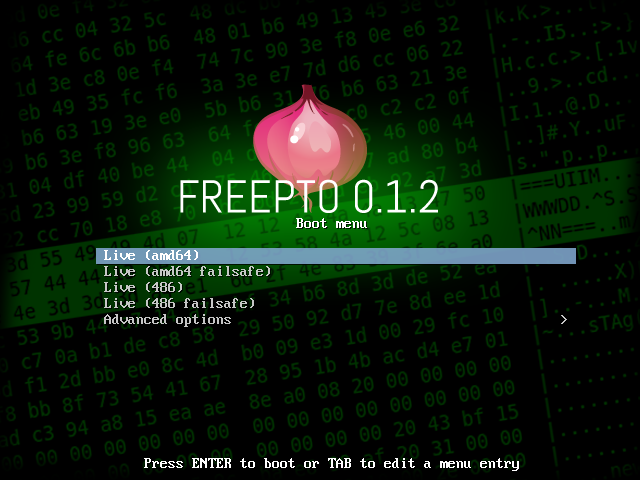
Se tutto va per il verso giusto vedrai una schermata simile a questa:
If the boot succeeds, you 'll see something like this:
During the boot, you'll be asked a passphrase to unlock the encrypted storage:
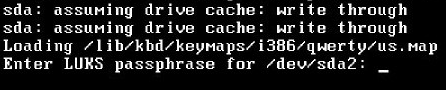
If you ignore this password prompt, Freepto will be booted in live mode. This means that any document you save will be lot when you turn your computer off.
If you instead enable the encryted storage, you'll be able to store documents and carry them with you on an encrypted USB drive.
If you don't remember your password, or if you just don't want to type it in because the environment around you is not secure (for example, if there is CCTV around you), you can just not enter the password and the system will be booted in live mode: you won't see any of your data, but you'll be able to use a base Linux system anyway and without problems of any sort.
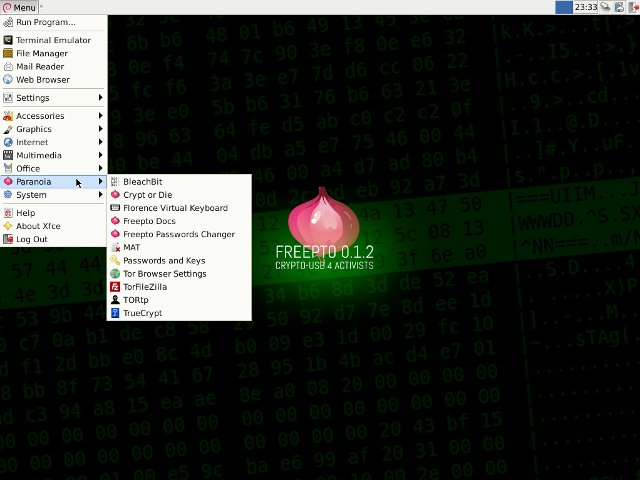
We've highlighted the most important applications for safeguarding your security in the application menu. You'll find them under the "paranoia" submenu.
Here you will find tools for anonymous internet browsing, tools for secure deleting of temporary files and encryption tools. For a complete list of the tools, refer to this page
The completa documentation is available at: /it/docs/