Restored from the project wiki (we.riseup.net), which is no longer online.
Freepto is a live operating system based on Linux. A live operating system can boot directly from a USB stick, without touching the computer’s disk. It therefore lets you keep your own operating system in your pocket at all times, and use it on whichever machine you prefer, without having to install anything.
Many other live systems exist, but freepto stands out for its attention to security and usability, offering a system designed for the needs of activism.
You can find the official project page here: www.freepto.co
To start freepto you need to set your BIOS to boot from USB.
To select booting from USB, press, immediately after switching the computer on, the key ESC: this should bring up a boot device selection panel. Select the USB!
stick. If that does not work, you will have to enter the BIOS: usually it is enough, while the computer is starting, to press one of these keys: ESC, F2, Canc or F10. Unfortunately it is impossible to give a procedure that works in every case, because the BIOS menu obviously differs from model to model. So, at least in this case, Google is your friend: search for example “boot usb” followed by the model / brand of your computer. Once the BIOS is configured to boot from USB, you can simply restart and wait for freepto to start.
If everything goes well you will see a screen similar to this one:
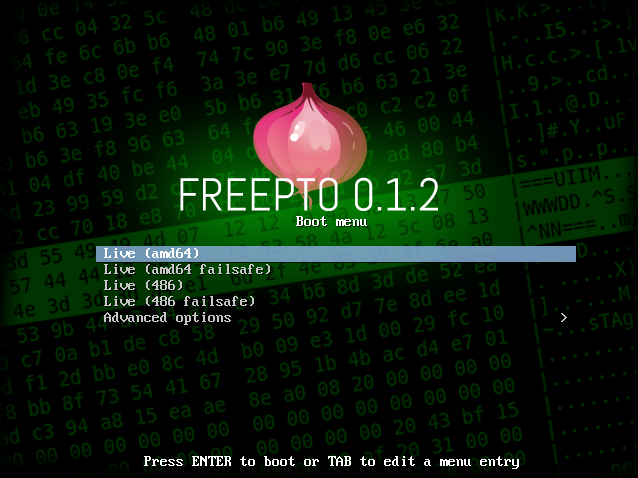
You are using a very old pc that does not support 64bit. Select the `(486)` option from the menu (note: this is new in freepto 0.1.2: previously it was not possible to use these computers)
During freepto’s boot phase you will be asked to enter a passphrase to unlock the encrypted persistence, with a string like this one:

You can ignore this request and start freepto in live mode, but in that case any change made while using freepto will be lost at the next restart.
By mounting the persistence you can instead keep the documents you create and carry them with you in a secure, encrypted system.
If you do not remember the password, or you do not want to enter it because the environment is not trusted (for example if there are cameras), you can skip entering the password and the system will start anyway, but in /live/ mode: you will not see your saved data, nor will you be able to save new data. You will still be able to use the base system without problems.
All freepto crypto-usb sticks ship with the same default cryptsetup passphrase (“freepto”); this is necessary in order to automate the installation procedure and distribute a system that is already installed and working.
It is ABSOLUTELY NECESSARY to change the default passphrase to one of your own choosing. Here you can find some guidance on how to choose a secure passphrase.
Changing the passphrase takes just three simple steps
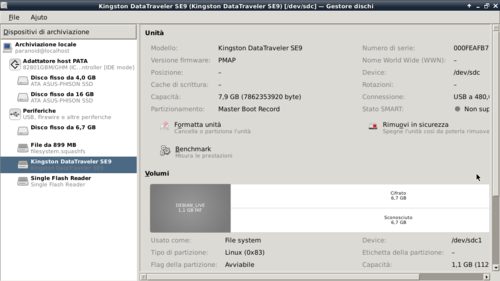
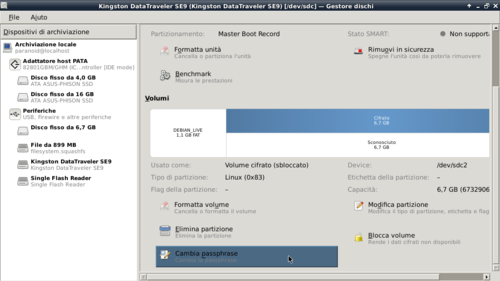
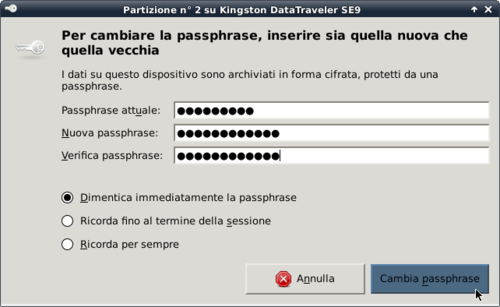
The account configured by default is the following:
paranoidliveIt is a good idea to change the password to a more secure one (Read some guidance on how to choose a secure passphrase).
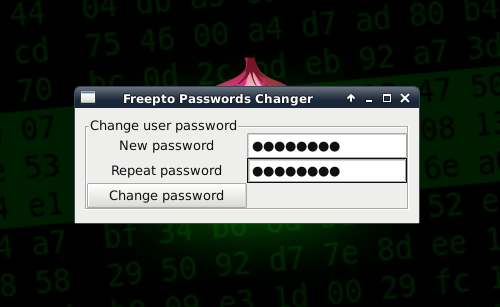
To do so it is enough to use the tool Freepto Password Changer, which you can find in the menu Paranoia.
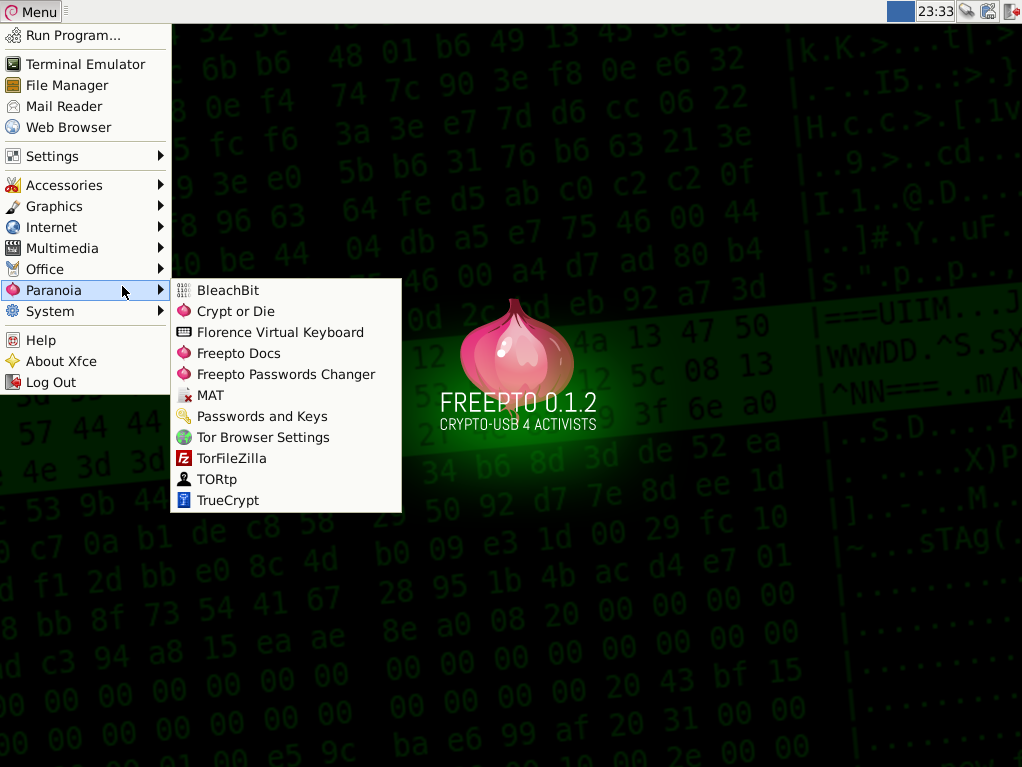
In the classic applications menu we wanted to highlight the more “particular” tools for protecting your security, in a dedicated menu.
Among them there are tools for anonymous browsing, tools for cleaning up temporary files, and encryption tools. These programs are described in more depth further on.
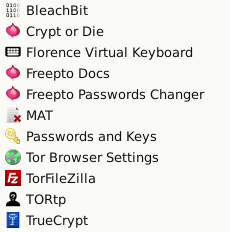
All of the following tools are already installed by default on freepto
The Tor Browser is a piece of software that bundles Tor, Vidalia and a modified version of firefox that improves the security and anonymity of your browsing. For more information, see the section of the booklet dedicated to it
The main goals of the TorBrowserBundle are the anonymity and the security of your browsing; for this reason its updates from the developers are very frequent and it is very important for you to always have the latest available version.
For this reason TorBrowser is not installed by default in Freepto, but torbrowser-launcher is present: a kind of manager for the TorBrowserBundle that takes care of downloading the latest available version and warning you when a new one is available, so that with a few clicks you can always have the latest version.
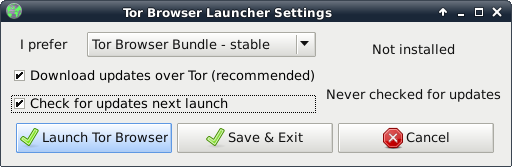
From the menu freepto launch Tor Browser Settings:
Select as version the stable and tick check for updates next launch
At this point torbrowser-launcher will download the most up-to-date version of TorBrowser:
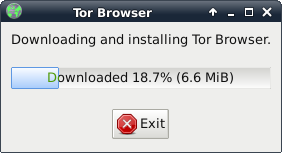
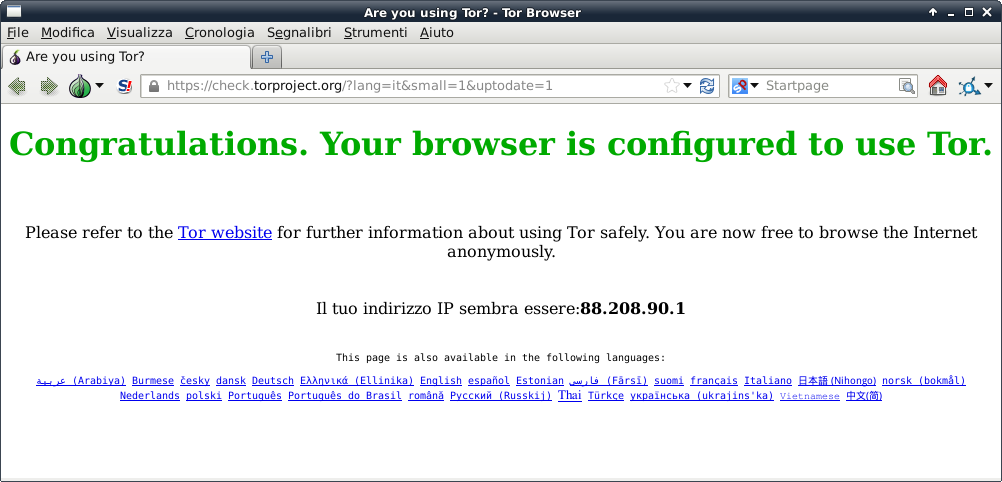
When the installation finishes TorBrowser opens and you can start browsing anonymously:
You can launch it from the “Freepto” menu.
TORtp is a simple script that lets you redirect all of the tcp traffic generated by your computer (as well as all dns requests 53/udp) towards a transparent proxy TOR.
In plain words this means that once it is enabled all of the PC’s traffic (that is not already configured to use TOR) is forced to pass through TOR, protecting your identity in this way.
For anonymous browsing on the web, using the Tor Browser Bundle already installed in freepto is probably enough, but if you are doing something particularly sensitive, then it is worth enabling TORtp.
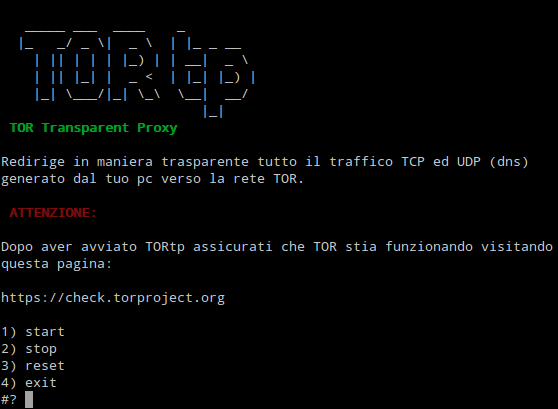
Once launched, you can enable it by pressing the key 1 and disable it by pressing the key 2. You can quit by pressing the key 4.
OpenVPN is installed on freepto, software that lets you use the self-managed vpn services run by Riseup.net and Autistici/Inventati.
For more information, see the section of the booklet dedicated to VPN.
The MAC Address is the unique identifier of the network card used by your computer.
It may be useful, especially if you connect from public and open WiFi, to change your MAC address. This makes it much harder to link your online activity to a physical computer.
To change your mac-address you can follow these simple steps from the terminal:
sudo ifconfig eth0 down
sudo macchanger -A eth0
sudo ifconfig eth0 up
NB: you will have to replace eth0 with the name of the interface you are using (most likely, if you are connected over wireless it will be “wlan0”, and if you are connected by cable it will be “eth0”).
You can see the list of all the interfaces present on your computer with this command:
sudo ifconfig -a
for chats between 2 people, jabber+otr is by far the most secure method.
Pidgin is the most suitable and simplest program for doing this. On freepto, you will find it already configured to use OTR.
In addition, pidgin will use tor automatically: this way nobody will know where you are, and whoever controls your network (university, public access point, home provider, employer) will not even know that you are chatting.
If you already have a Riseup or A/I account you also have a Jabber account.
For more information, see the section of the booklet dedicated to it
For conversations between many users, jabber can still be used, but without using OTR: at that point security depends on the trustworthiness of your providers (for example autistici.org is trustworthy, gmail is not).
If your level of paranoia is not high, IRC is a protocol in which multi-user chats are very simple to manage. The program to use it is XChat, which on freepto is already configured to use TOR so as to make you more anonymous and to connect to the IRC servers of autistici/inventati securely.
Bear in mind, however, that on irc users are not “authenticated” by default, and anyone could call themselves by anyone else’s name without any check. There are methods to work around this limitation, namely registering nicks; in short, IRC is an excellent platform for chat with a medium-high level of security and very simple to use.
To send email securely, GPG is the definitive tool. In freepto we have installed thunderbird+enigmail: this gives you a convenient mail client that lets you manage everything you need regarding the encryption of files and email with gpg.
Wiping overwrites the contents of the file with random data, before deleting the file from the index. In fact, generally when you delete a file you only remove its position in an index, but its contents remain on the disk.
To wipe a file it is enough to right-click on the file and choose “delete securely”
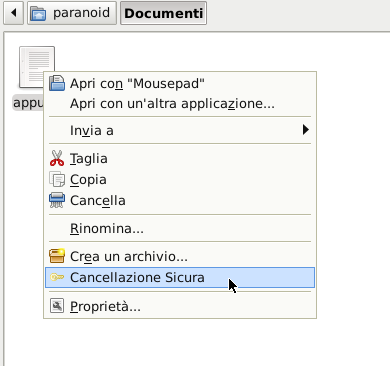
wiping a file is more useful on unencrypted filesystems than on encrypted ones! :)
As of freepto 0.1.2, this can also be done for entire directories: this way you can quickly and securely delete many files simply by right-clicking on the directory and clicking.
Most multimedia files (audio files, images, video, pdf, documents) contain a lot of “hidden” data that could endanger your anonymity; for example, images and videos often contain the model of camera used; it is therefore a good idea to remove this data before distributing these files.
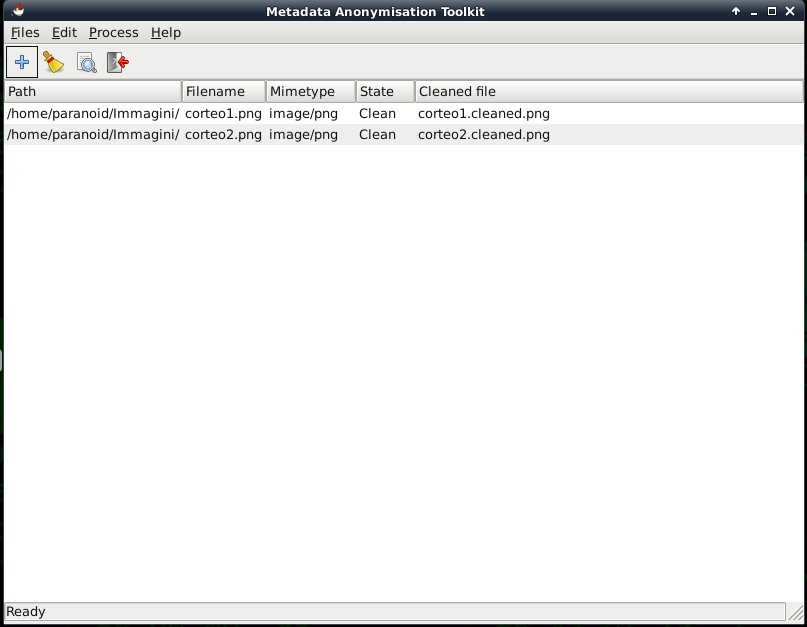
To use it, just open mat, click on “Add” and choose the files to “clean”. At this point the files will appear in the MAT window and we can select them and press the “clean” button.
MAT will create, for each file, a -cleaned version, leaving the original unchanged.
BleachBit is an integrated program that deletes a range of potentially sensitive data that is left behind in browser caches, in temporary files generated by various programs, and on the disk. You can see it as the free equivalent of CCleaner.
Truecrypt is software that allows the management of encrypted files or volumes.
Thanks to this software you will be able to exchange documents securely with other people.
More information can be found on the official site: www.truecrypt.org
Tomb is open source command-line software that allows the management of encrypted files.
The absence of a graphical interface makes it suitable for more expert users.
More information can be found on the official site: www.dyne.org/software/tomb
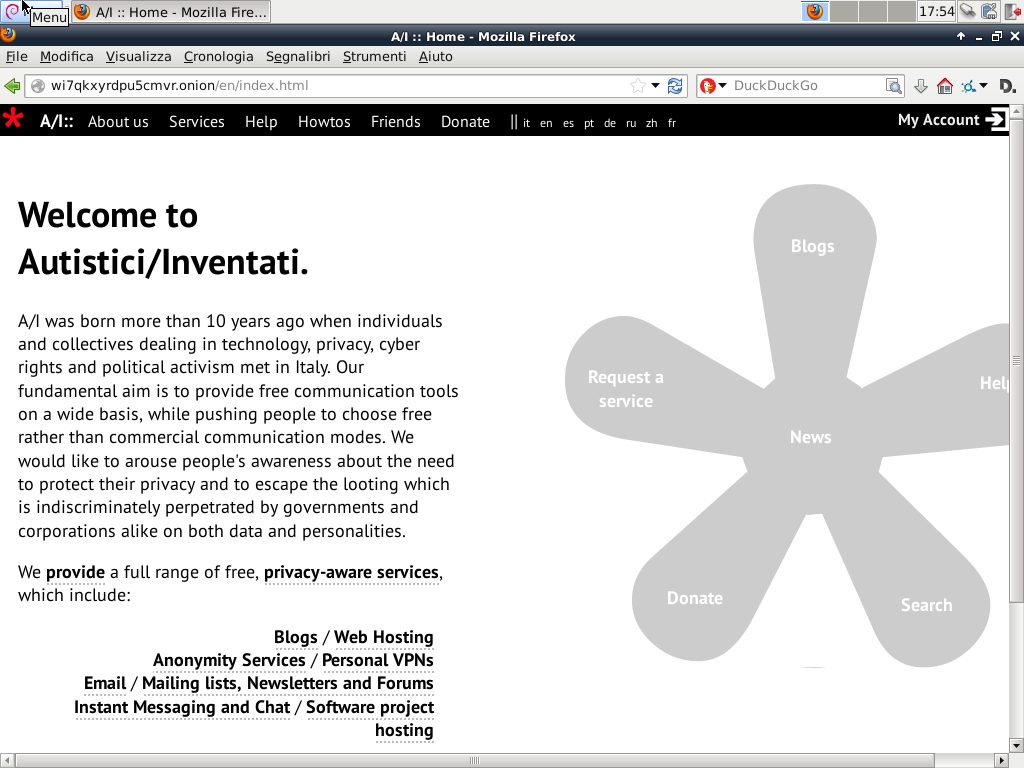
On Freepto, Mozilla Firefox is configured to automatically use Tor when you try to access Hidden Services, that is all those URI that end in “.onion”. This is possible thanks to FoxyProxy, a plugin that lets you use different proxies depending on the destination we want to reach.
This way it is not necessary to enable TorBrowser every time you want to visit a hidden service (although using it is still recommended in order to guarantee greater anonymity); it is enough to reach the “.onion” website as you would with any other site:
If you are using freepto on a pc that is easily accessible to anyone (perhaps in an internet point, in the occupied lecture room of some university, or in a squatted space) consider that there could be a (hardware) keylogger capable of recording all your passwords, or more simply a camera pointed at the keyboard.
So avoid entering the encryption password while freepto is starting, because that would make the protection of the encrypted file system completely pointless.
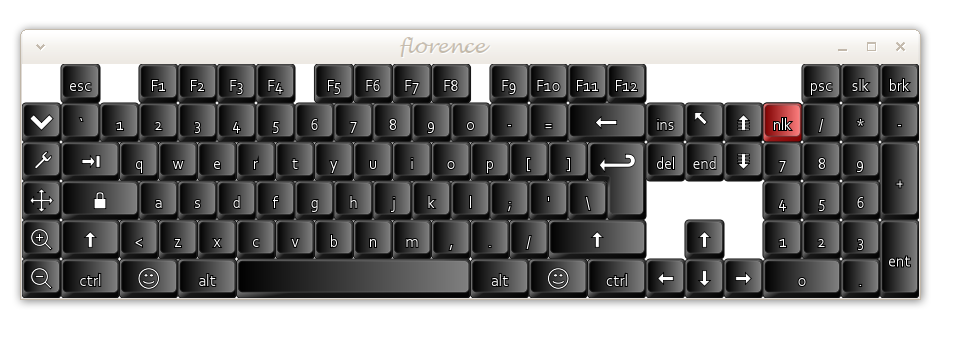
You can start freepto in the “live” version (without supplying your encryption password, therefore using the system in its original state) and afterwards you will be able to type your passwords securely (to log in to webmail, etc) taking care to use Florence, a virtual keyboard that gives you protection against the presence of hardware keyloggers.
Obviously Florence does not protect you against the presence of cameras or prying eyes, so avoid using positions that can be watched by cameras (it has happened that some passwords were captured this way, so be careful!)
You can start Florence through the freepto menu and you will get a window similar to this one:
Freepto is a complete operating system, so it is possible to update it, install new programs, and customise it. The best way to install new programs is synaptic; from its interface it is possible to search for additional “packages”, install them, remove them, and update them. Inside it there are hundreds of programs to do anything you might need: graphics, music, presentations…
To create freepto, unfortunately, you need to already have a Linux system available. The program that is needed is makefreepto.
Inside freepto this program is already included, and it can come in handy if you want to create a new freepto for someone. Downloading it from another Linux computer is also very simple.
Do not let the terminal scare you: a few simple steps are enough:
All versions of freepto are available from this link: download.freepto.co
Open the terminal and copy-paste the following command (replacing the X with the version you want to download):
wget -c http://download.freepto.co/makefreepto http://download.freepto.co/freepto_vX.X.X/freepto-it_IT_X.X.X/freepto-it_IT_X.X.X.imgThis will download both makefreepto and the actual image.
Insert the usb stick and run the following command to identify which “device” it corresponds to.
Copy-paste the following command into the terminal:
dmesg | fgrep '[sd' you will get output similar to this:
[ 3773.548418] sd 5:0:0:0: [sdc] 15625216 512-byte logical blocks: (8.00 GB/7.45 GiB)
[ 3773.550759] sd 5:0:0:0: [sdc] Write Protect is off
[ 3773.550763] sd 5:0:0:0: [sdc] Mode Sense: 03 00 00 00
[ 3773.551747] sd 5:0:0:0: [sdc] No Caching mode page present
[ 3773.551752] sd 5:0:0:0: [sdc] Assuming drive cache: write through
[ 3773.555490] sd 5:0:0:0: [sdc] No Caching mode page present
[ 3773.555496] sd 5:0:0:0: [sdc] Assuming drive cache: write through
[ 3773.562702] sd 5:0:0:0: [sdc] No Caching mode page present
[ 3773.562705] sd 5:0:0:0: [sdc] Assuming drive cache: write through
[ 3773.562708] sd 5:0:0:0: [sdc] Attached SCSI removable disk
The “important” part of the whole output is the part enclosed in square brackets; in the previous example the device is: /dev/sdc
WARNING: by specifying the wrong device you risk accidentally erasing ALL THE DATA ON YOUR OWN COMPUTER!
So if you have any doubts repeat the operation to be certain you have identified the right device.
To be safer, you can run this command
sudo sh -c 'echo $(( $(blockdev --getsize64 /dev/sdX) / (1024*1024) ))' sdX with the name of the device you identified earlier.From the terminal run the following command (obviously you have to replace sdX with the name of the device you identified earlier, and freepto-it_IT_X.X.X.img with the version you downloaded)
sudo bash makefreepto -i freepto-it_IT_X.X.X.img /dev/sdXYou will get output similar to this:
[+] Umount device /dev/sdb
[+] Remove all partition on /dev/sdb
[+] Starting copy
 with PID 4286
Writing 936M: 100%1914880+0 records in
1914880+0 records out
980418560 bytes (980 MB) copied, 358.496 s, 2.7 MB/s
./makefreepto: line 127: kill: (4286) - No such process
[+] Completed!
[+] Make encrypted persistent partition
Information: You may need to update /etc/fstab.

System is out of entropy while generating volume key.
Please move mouse or type some text in another window to gather some random events.
Generating key (50% done).
Generating key (75% done).
Generating key (87% done).
Generating key (100% done).
Command successful.
[+] Freepto is ready for use